Tab Cabinet
How to back up your Chrome tabs to a file
Tab managers and Chrome itself keep your tabs inside the browser. That is convenient until an update, a crash or a new computer leaves the list empty. A file is different: it sits on your disk, it survives when an extension is removed, and you can open it without the tool that made it. Here are four ways to get your tabs into a file, from no extension at all to fully automatic.
Method 1: Bookmark all tabs, then export your bookmarks (no extension)
Chrome can do this on its own in two steps.
- In the window you want to keep, press Ctrl + Shift + D on Windows, Linux and ChromeOS, or ⌘ + Shift + D on Mac. Chrome’s keyboard shortcut list describes this as saving all open tabs as bookmarks in a new folder. Give the folder a name with the date, such as “Research 2026-11-06”.
- Open the Bookmark Manager with Ctrl + Shift + O (⌘ + Option + B on Mac). At the top, open the More menu and choose Export bookmarks. Chrome’s help page says this saves your bookmarks as an HTML file.
Good: nothing to install, and the HTML file can be imported into almost any browser.
Limits: the export contains all your bookmarks, not only the new folder. Pinned tabs and tab groups are not kept, and you have to remember to do it.
Method 2: Write a Markdown list by hand
For a handful of tabs, a plain text file is enough, and Markdown keeps it readable. Each tab becomes one line:
- [Page title](https://example.com/page)
- Create a file called something like
tabs-2026-11-06.mdin a folder you back up. - For each tab, click the address bar, copy the address, and paste it into the file with the page title in square brackets in front.
- Group related lines under a heading that starts with
#, for example# Trip planning.
If you already exported bookmarks with Method 1, you can build the list faster: open the HTML file in a text editor. Every bookmark is a line containing <A HREF="…">title</A>, which you can turn into Markdown lines with find and replace.
Good: any device can open it, and notes apps that read Markdown show the links as links.
Limits: slow for more than a dozen tabs, and easy to forget.
Method 3: Use your tab manager’s export
Most tab managers can write a file, but few do it on their own. Check yours:
- OneTab can export and import lists of tabs (one-tab.com).
- Session Buddy copies or exports tabs in more than 15 formats, including JSON, CSV, Markdown and HTML, and creates backup files from the gear menu with Backup. Its Import and Export and Backup and Restore pages explain the difference.
- Tab Session Manager lists importing and exporting sessions among its features on its Chrome Web Store page.
Whatever you use, open the exported file once to make sure it contains what you expect, and save it outside the browser.
JSON, Markdown or HTML: which format?
| Format | Best for | Keep in mind |
|---|---|---|
| JSON | Importing back into the same tool, with session names, groups and pins | Hard to read by eye; each tool uses its own layout |
| Markdown | Reading, searching and pasting into notes; one line per tab | Holds titles and links only |
| HTML bookmarks | Moving tabs into another browser | Folders only; no groups or pins |
If you can, keep two: JSON to restore everything, and Markdown to read the list anywhere.
Where to keep the file
A file only helps if it outlives the problem. The Downloads folder is fine for a start, but move important copies to a folder your computer backup includes, or to a cloud drive you already use. Put the date in the file name so a newer copy never overwrites an older one by accident.
A quick checklist
- Pick one method and do it now for the window you care about most.
- Name files with the date, like
tabs-2026-11-06.md. - Keep the files somewhere your backup covers.
- Open one file to confirm the links work.
- Repeat on a schedule, or let a tool do it automatically.
If you are here because tabs already disappeared, see what to try when OneTab tabs disappear and how to get lost Session Buddy sessions back.
Questions
What is the fastest way to save all open tabs without an extension?
Press Ctrl + Shift + D (Command + Shift + D on Mac) to bookmark every open tab into a new folder, then export your bookmarks as an HTML file from the Bookmark Manager.
Which file format should I use?
Use Markdown or HTML if you want to read the list or open it in another browser. Use JSON if you want to import it back into the same tab manager with groups and names intact.
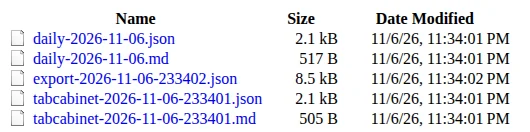
Method 4: Let Tab Cabinet write the files for you
We built Tab Cabinet for people who want the file without the routine. One click saves every tab in a window, with pinned tabs and tab groups, and no account. With Pro, each save writes a JSON file and a Markdown file to Downloads/TabCabinet/, and a daily snapshot adds one copy a day of all open windows. The free plan keeps 5 sessions and can export them as JSON; Pro is $5 once.